Great news! My friends at Indiana Assistive Technology Act Project (INDATA) have added my blog to the links on their blog. Check out the INDATA blog here: http://blog.eastersealstech.com/
So, if you folks from Indiana stumble across the link, and say "what is this blog from Fargo, ND doing on the INDATA blog?" The answer is this: Twitter.
Twitter has allowed me to social network with other Assistive Technology Professionals from all over the place. I guess the folks at INDATA liked what I was writing about, so they put the link up!
My goal for this blog is to share some AT tools that we are using here at West Fargo Public Schools. Some of these tools may not apply to you folks in Indiana, but I hope you are able to find some information that may help you to be more independent.
Thanks for reading! Stop by again sometime for some assistive technology tips and tools.
-Amy

Showing posts with label assistive technology. Show all posts
Showing posts with label assistive technology. Show all posts
Monday, May 10, 2010


Monday, May 3, 2010
Speech Maker in Read and Write GOLD
I am always excited to learn about new features in Read and Write GOLD software. In our district, we have Read and Write GOLD at all of our upper level buildings, as well as single copies in each of our elementary schools. A great feature of this software is the "Speech Maker" tool. This tool allows you to turn text into an audio file (MP3). Simply pull up a word document and highlight the text you would like or highlight some text you would like from the web or a PDF. Then, click the speech maker button. This will ask you to choose the voice, where you would like to save, and what file type you would prefer (MP3 or WAV). Then, the text is scanned and converted to an audio state. If you have chosen the MP3 format, you can then put it on a student's MP3 player.
This tool is wonderful if you have students who benefit from that extra auditory help. For example, they could have their vocabulary words loaded onto their iPod, and listen to help them study for the test. They could also have their speech transformed into MP3. As they listen to it over and over while practicing, by the time speech day comes around - they will have their speech memorized!
I hope you will find this tool useful for your students!
-Amy

This tool is wonderful if you have students who benefit from that extra auditory help. For example, they could have their vocabulary words loaded onto their iPod, and listen to help them study for the test. They could also have their speech transformed into MP3. As they listen to it over and over while practicing, by the time speech day comes around - they will have their speech memorized!
I hope you will find this tool useful for your students!
-Amy
Friday, April 23, 2010
High Contrast in XP
I learned something new today from A.T.TIPSCAST! Left shift, left alt, and print screen turns on the high contrast feature in Windows XP. This also works in Windows 7, but shows up a little differently. Give it a try for your students with visual impairments or those who have trouble focusing. You may be surprised at the results!
One Button Mouse
As children are acquiring computer skills, they often struggle with learning how to use a standard two button mouse. The right click button is confusing, and sometimes takes them away from the place they intended to go. If there is a scroll button - forget about it! When I was first approached about a one button mouse, I went to Best Buy to see if they had any. They did not, so I assumed that they could not be found or did not exist other than on the Mac. So, I went to our technology department and asked for an old mouse I could adapt.
This is my result.
I was very pleased with my work, as the visual hand with the star was going to be successful in teaching the student how to left-click. Well, it works, but the adhesive I used was not strong enough and it comes undone.
So, when approached a second time about a one button mouse, I decided to do a little research. Voila! A one button mouse. The Chester Mouse. The Chester Mouse is very petite, has one button, and a cute little mouse logo on it. It was designed for small hands, and works excellent for students who are new to computers or have fine motor issues. The Chester Mouse can be purchased from Chester Creek as well as from many third party vendors.
-Amy
This is my result.

I was very pleased with my work, as the visual hand with the star was going to be successful in teaching the student how to left-click. Well, it works, but the adhesive I used was not strong enough and it comes undone.
So, when approached a second time about a one button mouse, I decided to do a little research. Voila! A one button mouse. The Chester Mouse. The Chester Mouse is very petite, has one button, and a cute little mouse logo on it. It was designed for small hands, and works excellent for students who are new to computers or have fine motor issues.
 The Chester Mouse can be purchased from Chester Creek as well as from many third party vendors.
-Amy
Tuesday, April 20, 2010


Monday, April 19, 2010
AT Expo Recap
I had a fabulous time at the AT Expo! It was great to see so many faces. I met many new people - vendors, people with disabilities, parents, the aging population, and even a librarian! It is amazing how AT, once considered a very specialized field, really impacts everyone. One older couple I talked to said that they are determined to stay in their home as long as possible, and they were hoping to find some assistive technology to help them do just that. I also met a parent who thanked me for sending out the fliers to students because otherwise she would not have known about the Expo.
I also was part of helping Mark Coppin with his presentations on the iPod touch/iPad for special education. These sessions couldn't have come at a better time with the release of the iPad. The Wednesday session completely filled up, so Mark added a Friday session, which was also full! There are some wonderful resources to check out at this Ning site: http://ipods4specialneeds.ning.com/
At the West Fargo Schools booth, I was handing out flexible pencils. They were a HUGE hit! People kept coming up to my booth and saying, "Oh, THIS is where the cool pencils are coming from!" To me, it just made sense to give pencils - but I, of course, couldn't just give regular pencils. They had to be ASSISTIVE TECHNOLOGY pencils!
One thing I really wanted to discuss is the label maker I had on my table. People at first glance thought it was a communication device. When they looked closer - they noticed it was a label maker. They wondered why a label maker was on my table as AT. I explained that it helps students to organize their things, and for students with fine motor issues - they can use the label maker to print their answers and stick on fill-in-the blank worksheets and tests. People were really excited about those ideas! Something as ordinary as a label maker can be assistive technology, who knew? I presented a class a few weeks ago on AT, and I brought random household items (pizza cutter, lazy susan, magnetic chip clips, picture frame, kitchen drawer liner, etc) and had the attendees brainstorm how these items could be assistive technology. The responses were fantastic! This just shows that AT can be anything. It doesn't have to be fancy, sophisticated, and cost thousands of dollars, it just needs to be functional for the student.
In closing, the AT Expo was truly a success. My tweets ended up getting the news crew there - which was very exciting exposure for the event! I hope that you will share the great news of the Expo to your friends and family, and I hope to see you all there next year! www.atexpo.org
-Amy
I also was part of helping Mark Coppin with his presentations on the iPod touch/iPad for special education. These sessions couldn't have come at a better time with the release of the iPad. The Wednesday session completely filled up, so Mark added a Friday session, which was also full! There are some wonderful resources to check out at this Ning site: http://ipods4specialneeds.ning.com/
At the West Fargo Schools booth, I was handing out flexible pencils. They were a HUGE hit! People kept coming up to my booth and saying, "Oh, THIS is where the cool pencils are coming from!" To me, it just made sense to give pencils - but I, of course, couldn't just give regular pencils. They had to be ASSISTIVE TECHNOLOGY pencils!
One thing I really wanted to discuss is the label maker I had on my table. People at first glance thought it was a communication device. When they looked closer - they noticed it was a label maker. They wondered why a label maker was on my table as AT. I explained that it helps students to organize their things, and for students with fine motor issues - they can use the label maker to print their answers and stick on fill-in-the blank worksheets and tests. People were really excited about those ideas! Something as ordinary as a label maker can be assistive technology, who knew? I presented a class a few weeks ago on AT, and I brought random household items (pizza cutter, lazy susan, magnetic chip clips, picture frame, kitchen drawer liner, etc) and had the attendees brainstorm how these items could be assistive technology. The responses were fantastic! This just shows that AT can be anything. It doesn't have to be fancy, sophisticated, and cost thousands of dollars, it just needs to be functional for the student.
In closing, the AT Expo was truly a success. My tweets ended up getting the news crew there - which was very exciting exposure for the event! I hope that you will share the great news of the Expo to your friends and family, and I hope to see you all there next year! www.atexpo.org
-Amy
Tuesday, April 13, 2010
AT Expo -It's here!!
After months of anticipation and planning, the AT Expo pre-conference is tomorrow! Mark Coppin from the Anne Carlsen Center will bet talking about iPod Touches and iPads in special education. I will play the role of Vanna White and help Mark out. This session filled up so fast, that he added a second full day session on the same topic for Friday. This, too, has already been filled up! The timing of this event is perfect with the release of the iPad and people are interested in bringing this tool into the classroom. With all the Apps available, the iPod touch can be so useful for our students. It also has the 'cool' factor, making everyone interested. As well as the great things Mark is presenting on, there are several educational sessions Thursday, the day of the conference. There is also the Metro Area Mayor's Council on Disabilities luncheon, as well as vendor booths. The exhibit hall is open from 11am-6pm Thursday and is free to the public. I encourage you to invite anyone you know who would benefit from assistive technology. From ages birth-120, there is a tool out there to meet everyone's needs.
For more information, please visit www.atexpo.org
I hope to see you there!
-Amy
For more information, please visit www.atexpo.org
I hope to see you there!
-Amy
Thursday, April 1, 2010
Readability
Here is me trying to read an article from the NY Times website. Note all the banners, buttons, and advertisements around the article.
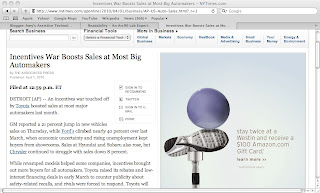
Here is what Readability does to the article:
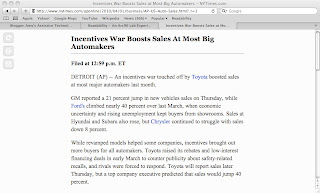
As you can see, all the clutter is removed, and it is easier to focus on the article.
For students who are easily distracted, this is tool is helpful. To use Readability, go to the following link. http://lab.arc90.com/experiments/readability/
Change the settings to those that are preferred by the reader. Right click the Readability button, add to favorites. Or simply drag the Readability button up to your toolbar.
Go find an article to read, then click the Readability button on your toolbar or find it in your favorites. Then, like magic, the text is changed to the settings you picked out!
I hope this tool will help your students be successful and independent learners!
-Amy
Friday, March 26, 2010
AT Expo
I have had the wonderful experience of being able to be involved with the planning of the 7th annual Assistive Technology Expo in Fargo, ND. The Expo was started by a group of people who wanted to get the word out to North Dakota, Minnesota, and South Dakota residents that there is, in fact, Assistive Technology available in our area. They have experienced great success with over 500 people attending last year.
There will be approximately 60 vendors, all showing assistive technology that is available in our area. There will educational sessions in the morning, a luncheon with the Metro Area Mayor's Committee for People with Disabilities Awards Banquet, vendor booths, and support groups meeting in the afternoon. There will also be a concurrent self advocacy workshop.
The exhibit booths are free and open to the public. They will be open from 11am-6pm. The morning educational sessions qualify for Continuing Education Units. There is also a free orthopedic screening from the Shriner's.
I must also mention that there is a pre-conference workshop. This workshop however, has filled up! Mark Coppin of the Anne Carlsen Center is presenting on the iPod Touch as an Assistive Technology Tool. You can see why this is in popular demand!
The expo is held on April 15th, 2010 at the Ramada Plaza Suites in Fargo, ND. You can find out more information at: www.atexpo.org. I look forward to seeing you there!
-Amy
There will be approximately 60 vendors, all showing assistive technology that is available in our area. There will educational sessions in the morning, a luncheon with the Metro Area Mayor's Committee for People with Disabilities Awards Banquet, vendor booths, and support groups meeting in the afternoon. There will also be a concurrent self advocacy workshop.
The exhibit booths are free and open to the public. They will be open from 11am-6pm. The morning educational sessions qualify for Continuing Education Units. There is also a free orthopedic screening from the Shriner's.
I must also mention that there is a pre-conference workshop. This workshop however, has filled up! Mark Coppin of the Anne Carlsen Center is presenting on the iPod Touch as an Assistive Technology Tool. You can see why this is in popular demand!
The expo is held on April 15th, 2010 at the Ramada Plaza Suites in Fargo, ND. You can find out more information at: www.atexpo.org. I look forward to seeing you there!
-Amy
Thursday, March 25, 2010
LiveScribe Pulse Smart Pens
Have you heard the buzz about the new LiveScribe pens? They record audio while taking notes. The pen has an infrared camera that reads a special dot pattern on the paper. The pen matches the audio recording to the notes that are being taken. When the lecture/meeting/presentation is over, tap the notes to hear it again! Tap anywhere on the notes, and the pen remembers the audio from the spot. Check out the video at www.livescribe.com you have to see it to believe it!
These pens are a great assistive technology tool. Not only are they readily available (sold at Target and Best Buy), but they are reasonable priced. The 2GB model starts at about $150. The 2GB model holds 200 hours of recording time, and the 4GB model holds 400 hours of recording time. The notebooks cost about $7 each. The pen does require the specialized paper to work, however, the paper can be downloaded and printed from the website.
Besides the obvious use of eliminating a scribe for students, we are using these pens for students who need the accommodation of having tests read to them. Simply tear out a sheet of notebook paper, and run it through the printer to print the test on it. Before the scheduled test, use the pen to record the test for the student. The student sits in class with the pen and the headphones plugged in. The test is read to the student with out having to leave the class. The student can even increase or decrease the playback speed, so the question is read at a speed that he or she can easily follow. How wonderful is that?!
I have also seen examples of the pen being used for students as a communication device. Boardmaker symbols are printed onto the paper, and a teacher records the messages. The student uses the pen to tap the picture, and it is spoken.
I want to know, where were these pens when I was in college? Disability services at some colleges are switching from carbon copy notebooks to these pens, eliminating note takers for students! Hooray for independence!
-Amy
These pens are a great assistive technology tool. Not only are they readily available (sold at Target and Best Buy), but they are reasonable priced. The 2GB model starts at about $150. The 2GB model holds 200 hours of recording time, and the 4GB model holds 400 hours of recording time. The notebooks cost about $7 each. The pen does require the specialized paper to work, however, the paper can be downloaded and printed from the website.
Besides the obvious use of eliminating a scribe for students, we are using these pens for students who need the accommodation of having tests read to them. Simply tear out a sheet of notebook paper, and run it through the printer to print the test on it. Before the scheduled test, use the pen to record the test for the student. The student sits in class with the pen and the headphones plugged in. The test is read to the student with out having to leave the class. The student can even increase or decrease the playback speed, so the question is read at a speed that he or she can easily follow. How wonderful is that?!
I have also seen examples of the pen being used for students as a communication device. Boardmaker symbols are printed onto the paper, and a teacher records the messages. The student uses the pen to tap the picture, and it is spoken.
I want to know, where were these pens when I was in college? Disability services at some colleges are switching from carbon copy notebooks to these pens, eliminating note takers for students! Hooray for independence!
-Amy
Subscribe to:
Posts (Atom)